PowerPoint Repair: Restore Corrupted PPT Files Quickly and Safely
Do you also get frustrated when your essential PowerPoint file gets inaccessible? No worries, now you can easily repair them by using advanced AI-powered tools. These tools can easily cater to various data loss scenarios, including power outages and virus attacks.
Whether you are an executive preparing for an important meeting or a teacher preparing a lesson, these tools are a safeguard for you. This article will cover the 5 most efficient methods for PowerPoint repair with a streamlined procedure.
Part 1. PowerPoint Repair: Why Slides Break and How to Spot Problems Early
Before exploring PowerPoint repair tools to fix presentations effectively, let’s first examine why PowerPoint files get corrupted:
- Technical Failures: Sometimes, a sudden system shutdown or restart occurs during PowerPoint file editing or saving operations.
- External Threats: In case your system has malware that is affecting PPT files or cloud synchronization, it creates conflicts while opening files.
- User-Related Issues: Users can mistakenly overwrite the file or delete the headers of their presentation file while managing it, leading to file corruption errors.
- Software Glitches: While creating a PPT, embedded files, such as images, graphs, and other elements, can cause file corruption.
- File Access Issues: When you open the PPT file, it will show you an error message like “File format is not valid” or “Cannot open file” as early warning signs.
Part 2. 5 PowerPoint Repair Methods Using a PowerPoint File Repair Tool
To recover your presentation quickly, here are 5 proven PowerPoint repair methods using built-in and dedicated PowerPoint file repair tools:
1. Use PowerPoint’s Built-in “Open and Repair” Tool
To repair your corrupted PPT file, start with the built-in repair feature in PowerPoint. This method is beneficial as it is developed by Microsoft specifically for PowerPoint file architecture, making it efficient. Furthermore, it preserves slide order and hierarchical structure and even saves the ext. formatting, fonts, colors, and styling. The foremost point is that users can easily use this without having any technical knowledge, so let’s explore its guide:
Step 1. Open the PowerPoint app and hit the “File” menu located at the top-right menu. Following this, click on the “Open” button and hit the “Browse” button.
Step 2. Here, navigate to the corrupted PowerPoint file and click the “Open” button. Afterwards, select the “Open and Repair” button to start the repair process immediately.
2. Insert Slides into a New Presentation
In case your “Open and Repair” method fails, you can try making a new slide in PowerPoint. Afterwards, manually extract the corrupted PPT file and paste it into the newly-generated PPT to make it easily accessible. This method is highly beneficial if your file shows error messages such as “File format is not valid.” Furthermore, it gives you an edge in choosing which slide to recover, making it easier to manage.
3. Desktop PowerPoint Repair Software – Repairit
While creating your quarterly report to present to the board of directors, you might face an issue of file corruption. When you restart the PC, you find that the presentation file is corrupted and inaccessible. Instead of panicking, we recommend using Repairit, which offers an efficient PowerPoint repair tool.
Repairit provides wide support for various file formats, including Word, Excel, PowerPoint, and more. This tool lets you repair files by simply inserting the corrupted files, and it will repair them for you. Users can even access it on desktop and online.
Key Features
- Preview Feature: Users can review the repaired result before downloading to ensure it is completely accurate.
- Batch Processing: It lets you repair multiple files simultaneously to save you extra time and manual effort.
- Repair Options: It is capable of supporting numerous repair options, including “Document repair, PPT repair, and Archive Repair.”
Extensive Guide To Repair Corrupt Files Using Repairit
After hearing the outstanding features of Repairit, let’s explore the detailed step-by-step guide to use Repairit for repairing PPT:
Step 1. Choose “More Type Repair” to Insert Corrupted PPT Files
As you enter the tool, click on the “More Type Repair” option and select the “Document Repair” feature to access PowerPoint files.

Step 2. Initiate the Repairing Procedure to Repair PPT Files
Upon adding the PPT file, hit the “Repair” button to get the process started instantly.
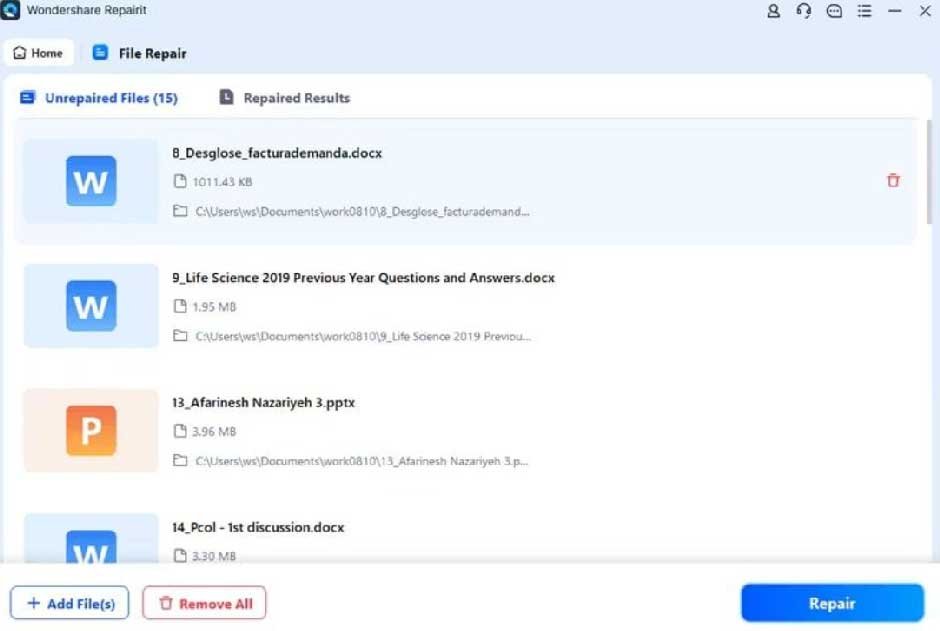
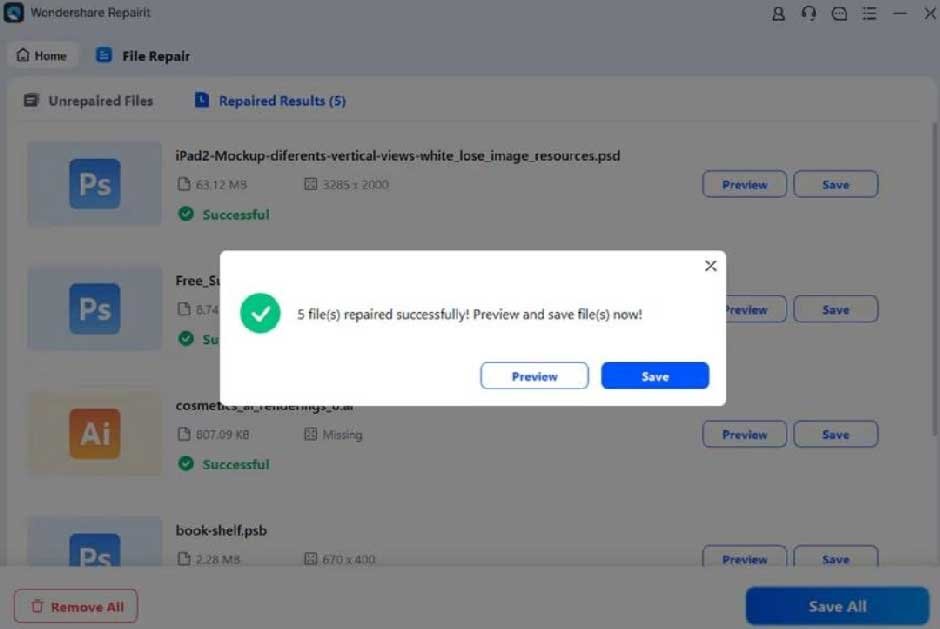
Step 3. Preview and Save the Repaired PowerPoint File
Once the repaired process is completed, hit the “Preview” button to examine the outcome. Afterwards, choose the “Save” button to export the repaired presentation file.
4. Use Online Repair Tools (Use Repairit Online)
Besides the desktop tool, if you are out of memory and want a quick solution, we recommend using Repairit Online. This PPT repair online tool lets you repair several files instantly without needing any technical help. Furthermore, it also provides you with wide support for various file formats, including PPT and Word.
Besides repairing files, it can also restore images and other file formats while maintaining complete accuracy. Furthermore, it also provides advanced features like Magic Eraser to erase unwanted elements from the image.
Expert Guide on How to Use Repairit Online For PPT Repair
Now, if you want to explore this efficient tool to repair your PPT files, read the following detailed instructions:
Step 1. Click the File Repair Option to Add Corrupted PPT Files
Upon entering the tool, select the “File Repair” option from the left-hand tab, then click the “Add Files” button to add the corrupted PPT files.
Step 2. Start the Repairing Procedure by Clicking the Repair All Button
Upon entering the corrupted file, tap on the “Repair All” button at the bottom to initiate the procedure.
Step 3. Download the Repaired PPT File To the Device Folder
As the file is repaired, click on the “Download” button to get the file saved to the device folder.
5. Try WPS Office or Other Office Suites
Sometimes PowerPoint’s built-in features don’t work, so you can opt for another office suite like WPS Office. This suite uses its own algorithms, allowing you to open or fix files that Microsoft PowerPoint rejects. Users simply open the corrupt file using its File Repair feature, and it instantly starts repairing without any manual work. So, if you want to explore this method for PowerPoint Repair, go ahead and read the following guide:
Step 1. After opening the WPS Office, click on the “Tools” tab at the top. Afterwards, choose the File Repair option and select the “Repair Damaged File.”
Step 2. Here, choose the desired corrupted file and hit the “Open” button to access it.
Step 3. A pop-up will appear where you need to select the “Fix File” button to proceed to the next interface.
Step 4. Within this interface, check that the accurate files/folders are chosen and click on the “Repair” button.
Step 5. Once the procedure is complete, click “View File” to open the repaired file in WPS Office.
Part 3. 5 Smart Practices to Avoid Corrupting PPT Files
Let’s go through 5 smart habits to avoid the hassle of using PowerPoint repairing tools and keeping the presentations secure and error-free:
- Multiple Backups: Try to keep multiple backups of the file in both cloud services and physical storage devices to avoid these issues.
- Safe File Management: While storing files, keep the file names consistent and avoid special characters that can cause file corruption issues.
- Optimize System Performance: Keep your operating system updated and try to keep 20% free disk space, as full storage can also lead to file corruption.
- Safe Editing Practices: Before editing the PPT files, make an extra copy of the file and turn off other applications to lessen the system’s load, resulting in smoother workflow.
- Malware and Security Prevention: Ensure you regularly scan your device and apps for any malware to avoid essential data loss or corruption issues.
Conclusion
Summing up, this article has covered the most reliable methods for PowerPoint repair with detailed guides. However, we recommend using Repairit, which lets you repair numerous types of files with complete accuracy. Furthermore, we have also listed some efficient tips to avoid further file corruption issues.